How to Obtain Log or Crash Files for 3DeVOK Studio?
To assist in troubleshooting, please follow the steps below to locate and provide the necessary log or crash files.
-Locate the Software Directory
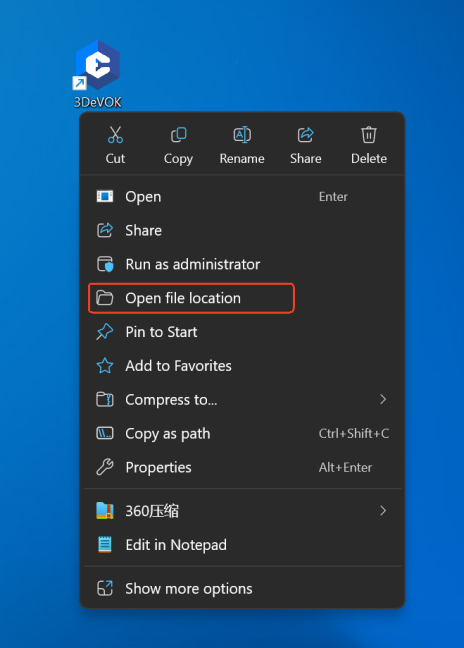
-Right-click on the software’s desktop icon and select “Open file location”.Find the Log Files
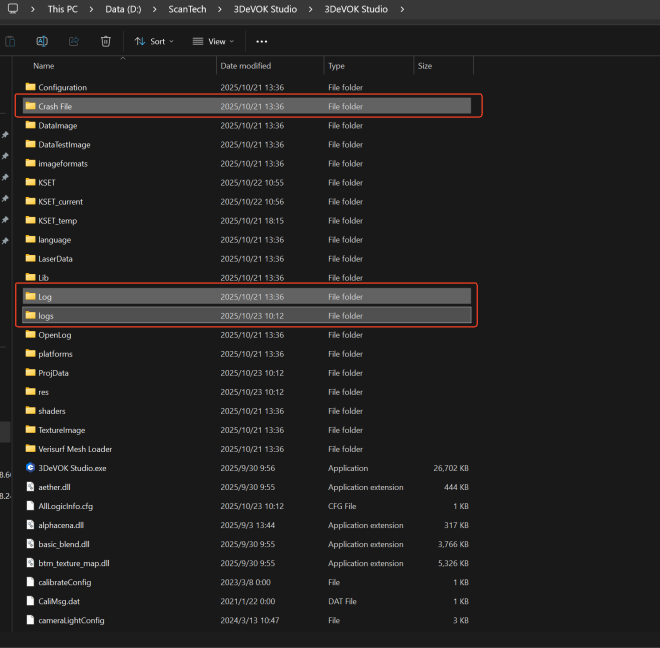
In the opened folder, look for a folder named “Log” or “Logs”. Please send the entire folder to the corresponding sales or technical support contact.
-Handle Crash Issues: If the software has crashed, look for a “Crash File” folder in the same software directory. Check inside for any files with the .dmp extension. If present, please provide these files as well.